Short answer: start with sunlight, the external connections, and anything blocking the fan. Do not open a battery pack, change controller settings, join bare wires, or try an unapproved panel or charger. If the unit is swollen, leaking, unusually hot, wet, smoking, or making an unusual smell or sound, stop using and charging it.
Solar fans do not all work the same way. Some can run directly from a panel, some charge a battery first, and some include a mains charger or automatic protection. The correct behavior, input limits, charging time, and indicator lights depend on the exact model. Use the product label and its manual as the authority for those details.
Stop Before Troubleshooting If You See a Warning Sign
Turn the unit off and disconnect the external power source, if it is safe to do so, when you notice any of these conditions:
- a battery case or product housing that is swollen, split, leaking, or misshapen;
- unusual heat, a chemical or burning smell, hissing, cracking, or smoke;
- a damaged, exposed, pinched, or melted cable;
- water inside the fan, battery compartment, charger, or connector;
- scorch marks, repeated fuse operation, sparks, or a connector that becomes hot.
Do not touch a hot or leaking battery, open a sealed pack, or put a damaged lithium-ion battery in household waste. The U.S. Environmental Protection Agency notes that swelling indicates battery damage and a potential fire hazard, and advises contacting the product manufacturer for handling instructions for a damaged battery or device.
If there is smoke or fire, move away, keep others clear, and contact local emergency services. Do not continue testing the unit.
Farseen model check: identify the supplied panel first
For Farseen’s current four-model range, the listed solar panels differ. Match the model on the fan label to its supplied accessories before trying another charging source.
| Fan model | Listed supplied solar panel |
|---|---|
| T02 12-inch desk fan | 9V 4W |
| W01 16-inch wall fan | 9V 20W |
| 198F 16-inch standing fan | 9V 20W |
| S600 18-inch standing fan | 18V 20W |
These are current product specifications, not measured charging results or DC-charger output ratings. A 20W panel is not automatically interchangeable with another 20W panel: S600’s listed panel voltage differs from that of 198F and W01. Even a matching voltage and a fitting plug do not establish compatibility; the connector, polarity and charging system still need to match the exact model.
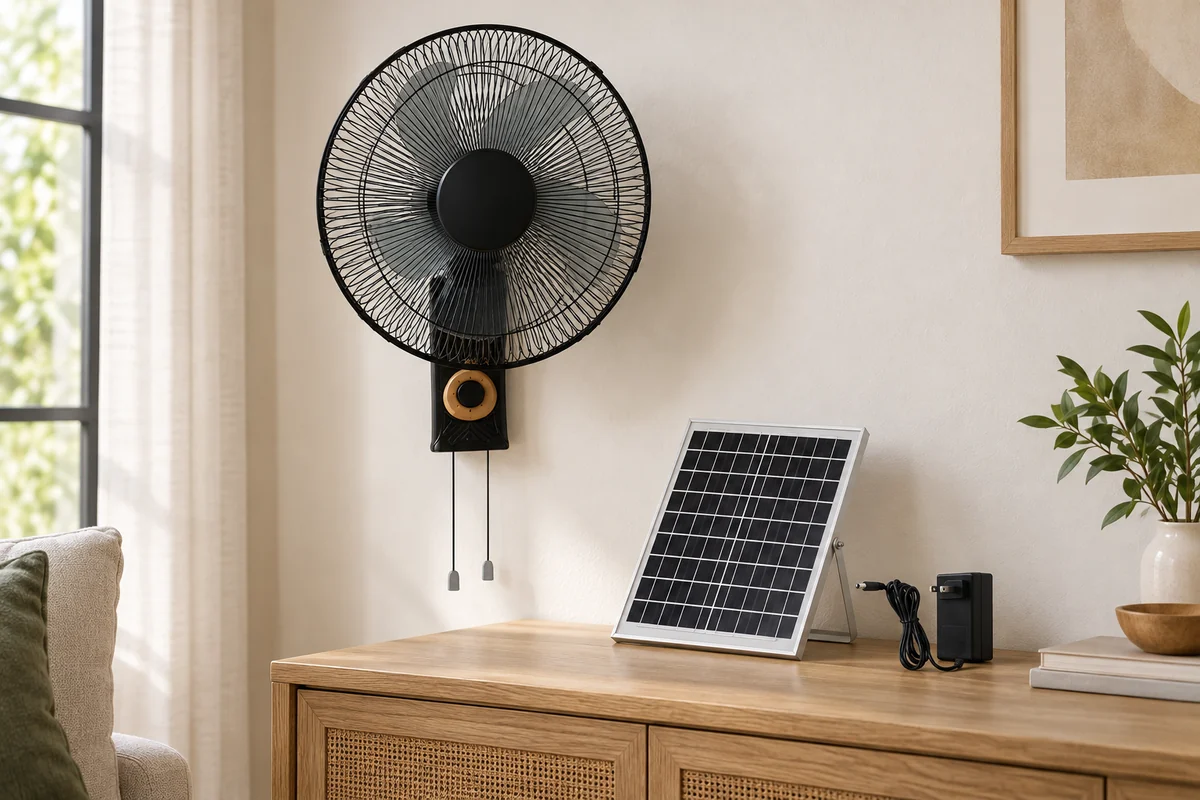
A photo helps identify the parts, but cannot confirm that a panel or charger is working. Photograph the label on the accessory you actually received. If its rating differs from your order specification, ask the supplier to check the set before connecting a substitute.
Check 1: Confirm the Available Solar Input
Low solar input can look like a fan or battery fault. Solar output changes with sunlight, shade, dirt, panel angle, weather, and time of day. The U.S. Department of Energy identifies shade and soiling as factors that reduce photovoltaic energy yield.
Use this low-risk check:
- Put the panel in the outdoor position described by the manufacturer.
- Remove temporary shade from buildings, trees, cloth, packaging, or other objects.
- Look for dirt, leaves, cracks, or visible damage without opening any electrical enclosure.
- If cleaning is allowed by the manual, switch the system off and use the method specified by the manufacturer. Keep liquid away from connectors and damaged areas.
- Test the fan once under stable daylight conditions and record what happens.
Do not treat a cloudy-day result as proof that the motor or battery has failed. Also do not assume every model should spin directly from the panel: some products require a charged battery or use control logic that is specific to the model.
Check 2: Inspect Only the External Connections and Controls
With the unit switched off, inspect the parts intended for normal user connection:
- Is the panel cable plugged into the socket identified for solar input?
- Is the connector fully seated, clean, dry, and free from bent or burnt parts?
- Is the power switch in the documented position?
- Is a speed control set above off or zero?
- Are the guard and visible blade area free from packaging, cloth, dust buildup, or another obstruction?
Keep fingers and tools out of the guard. Do not remove the guard unless the manufacturer explicitly describes that as a user maintenance task and the product is fully isolated from every power source.
Read the T02 input and output labels
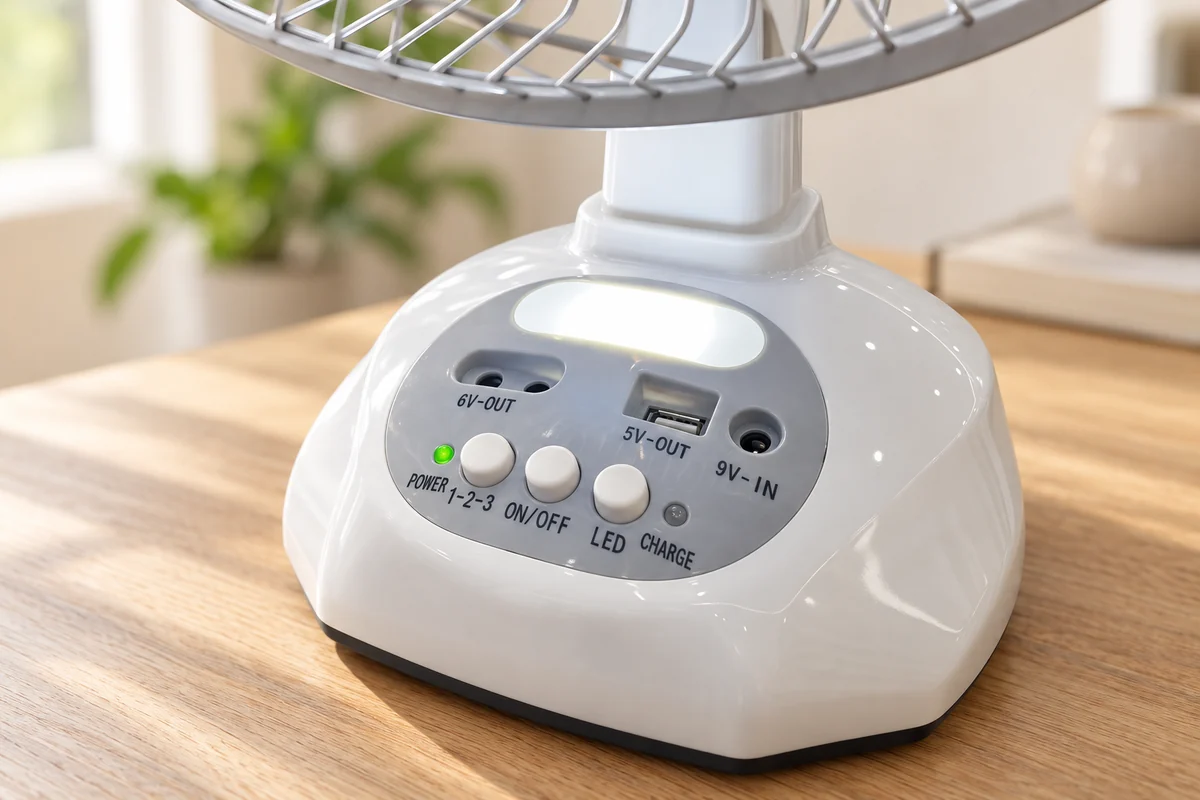
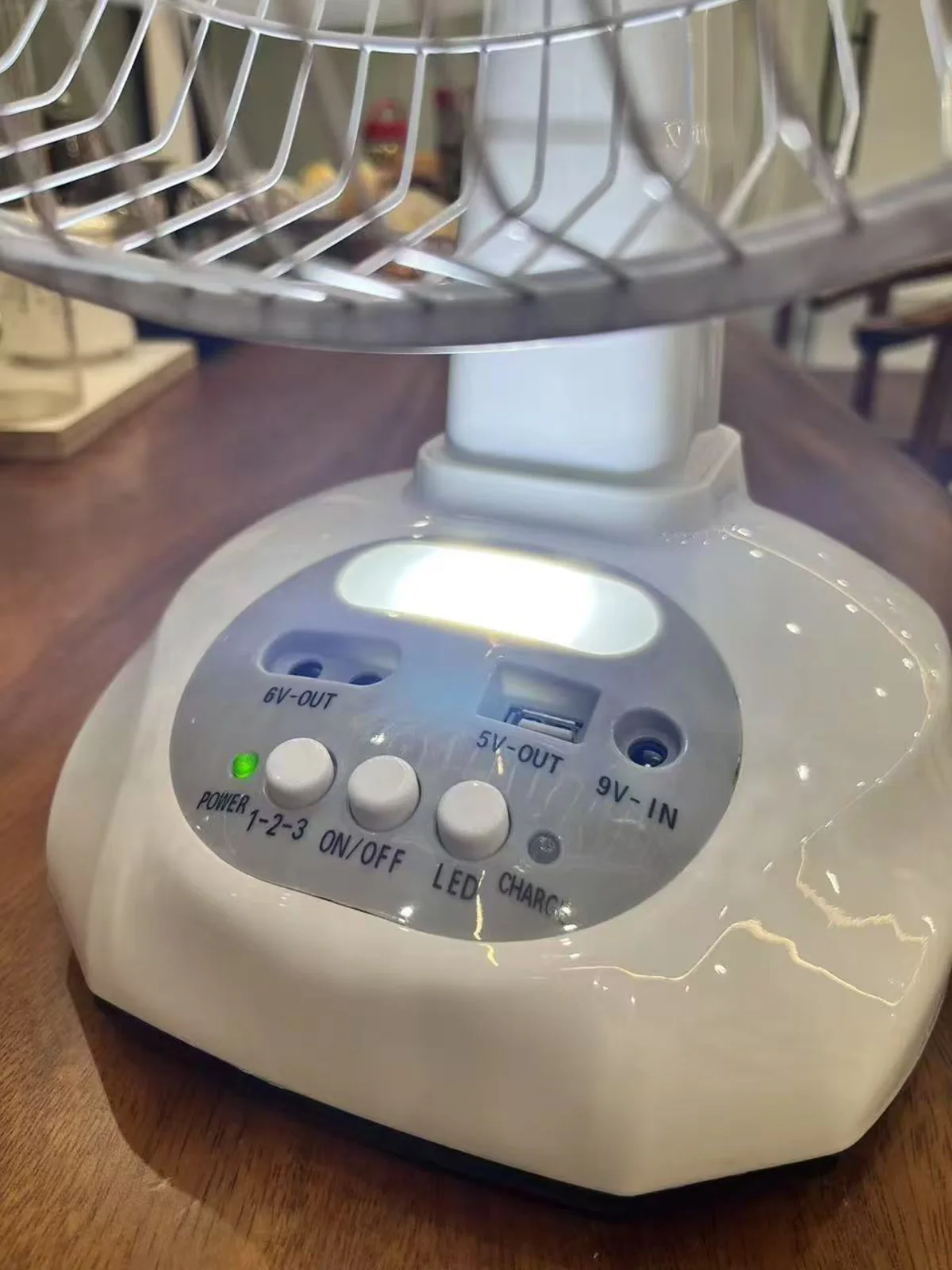
In the original supplied T02 photograph, the round socket on the right is labelled 9V-IN. The USB port is labelled 5V-OUT, and the two accessory sockets are labelled 6V-OUT. Those output ports are not the charging input shown on this sample.
For a T02 that matches this labelled version:
- Find the 9V-IN marking on your own unit before connecting the supplied charging accessory.
- Check the supplied panel or charger label and the model’s instructions. Do not read the panel’s wattage as the charger’s output specification.
- Leave 5V-OUT and 6V-OUT out of the charging-input check. Do not try to charge this sample through its USB output.
- Record the visible POWER and CHARGE indicators separately. The photograph does not tell us what a steady, flashing or unlit indicator means, or prove that the battery is full; obtain that explanation for the exact version from the manufacturer.
This is a label-based check using a supplied photograph, not a confirmed fault or a repair result. Other fan models and revisions can have different sockets and controls.
Use only the panel, charger, cable, and replaceable fuse type approved for the exact model. A plug that physically fits does not prove that voltage, current, polarity, or charging behavior is compatible. An unapproved source can damage the controller or battery and create a safety risk.
Do not:
- reverse a connector or force it into the wrong socket;
- bypass a fuse, controller, thermostat, or battery protection circuit;
- change a battery chemistry or controller profile;
- connect bare wires or short battery terminals;
- repeatedly switch the unit on and off when it shows a fault;
- measure live internal wiring unless you are a qualified technician following service documentation.
Check 3: Separate a Charging Problem From a Fan Problem
After the first two checks, write down the symptom instead of replacing parts at random.
| What you observe | Safe next step and information to record |
|---|---|
| No indicator and no fan response | Recheck the approved external input and connector, then contact support. This can involve missing input, protection or an internal fault. |
| Indicator works but blades do not move | Switch off and check only for a visible obstruction. Record the indicator and control setting, then request service. |
| Fan runs in sunlight but not from the battery | Record the mode and charge history, then follow the model manual or ask support. Do not open or substitute the battery. |
| Fan runs but the battery does not appear to charge | Record sunlight, source and connector labels, and the indicator pattern. Ask support to interpret the model-specific behavior. |
| Operation stops after a short time | Record the setting, approximate time and any unusual heat. Stop repeated testing and request model-specific guidance. |
This table is a triage guide, not a remote diagnosis. More than one cause can produce the same symptom.
If the fan works from its own buttons but not from the handset, follow the fan remote-control checks before replacing it.
Information to Collect Before Contacting Support
A useful support request should include:
- the model and serial or batch number shown on the label;
- clear photos of the fan, panel label, charger label, and external connectors;
- whether the issue affects charging, spinning, or both;
- the indicator-light pattern, if the manual defines one;
- the weather and panel placement during the test;
- whether there was a fall, water exposure, cable damage, unusual heat, smell, or noise;
- which supplied accessories were connected when the problem appeared.
This information helps support distinguish a setup issue from a component that needs qualified inspection. For Farseen product support or importer service questions, use the contact page and include the product label photos.
FAQ
Can I test the fan with a different solar panel?
Only when the manufacturer confirms that the panel's voltage, current range, connector, polarity, and charging configuration are compatible with that exact fan. Similar-looking connectors are not enough.
Can I replace a lead-acid battery with a lithium battery?
Not as a direct substitution unless the product manufacturer approves the battery chemistry, voltage, protection system, physical installation, and charging profile. Do not use a generic battery-life table to make this decision.
How many hours should charging take?
The supplier-stated running hours on a product page are not charging hours. Our recharge-time guide explains the difference and what conditions to record. There is no universal number. Charging time depends on the model, battery state, approved input, sunlight, panel placement, weather, and whether the fan is being used while charging. Use the manual or obtain guidance for the exact model.
Should I replace the motor if the blades do not move?
Not before checking the safe external items above. If there is no visible obstruction and the correct controls and supplied power sources do not restore operation, stop testing and arrange qualified service.
References

Farseen Editorial Team
The Farseen Editorial Team publishes practical guides and company updates about solar rechargeable fans, off-grid appliances, and product sourcing. Where an article discusses product-specific details, refer to its cited sources or contact Farseen for current information.